


10 min read
Interstitial ads

Interstitial ads are full-page ads that appear between the pages of the e-newspaper. You can create a new ad or manage an existing one at any time in Prenly Workspace.
They are dynamically added to the e-newspaper without appearing in the PDF or in the print version of the newspaper.
They are created and managed in Prenly Workspace.
We also offer a premium service to make managing Interstitial ads easier. In this case, they are created and managed within our service and inserted into Prenly Workspace as HTML ads—one version for portrait orientation and one for landscape.
Learn more about this service and sign up at ctabtn.com
Requirements
HTML. The minimum requirement for Prenly to display your ad is to include an image tag in HTML within the ad content configuration.
HTTPS. For security reasons, your ad image source must use HTTPS for the ad to be displayed in your e-newspaper.
ClickableAd. If you want your ad image to be clickable for readers, you need to wrap the image tag in a link tag.
You can use scripts from external ad servers such as Google Ad Manager to dynamically display in-article ads, but keep in mind that this type of advanced integration requires thorough testing. For this purpose, we have developed a number of features described further down on this page.
Here’s how to do it
In the left-hand sidebar of Prenly Workspace, select “Marketing” and then “Ads.”
1. Create a new in-feed ad by selecting “New.”

2. Name your ad.
Readers won’t see this name; it’s only used so you can find your ad among the others in the ad list in the future.
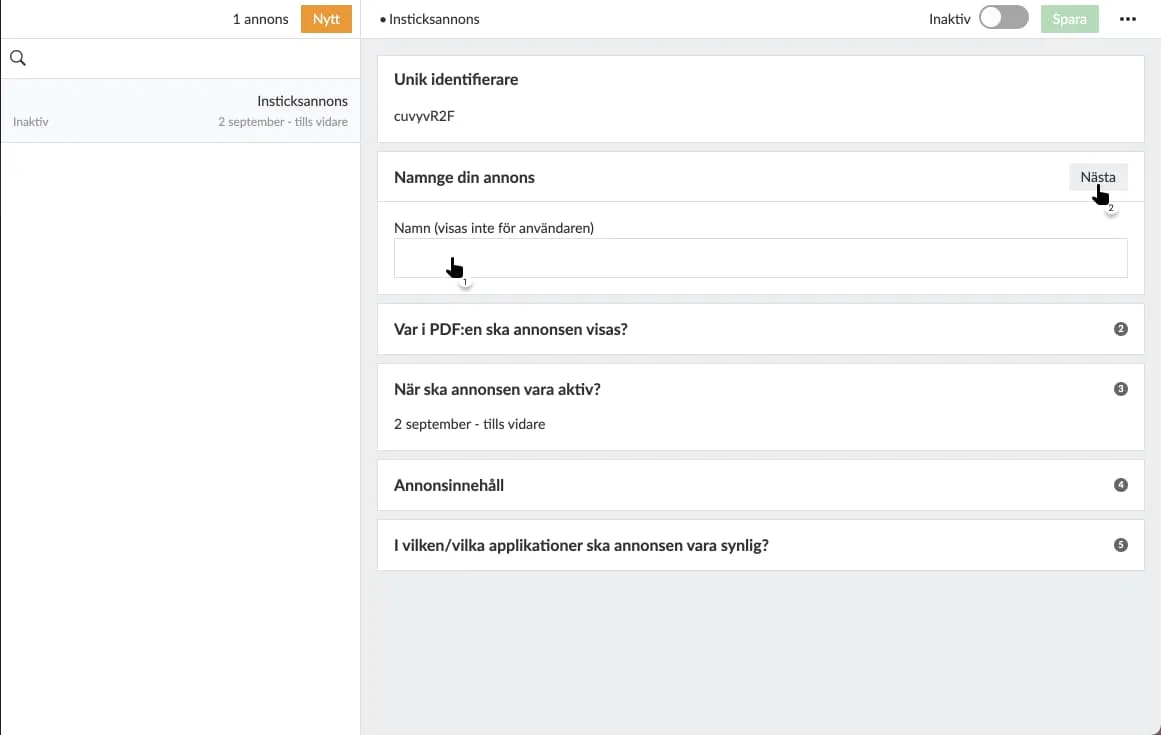
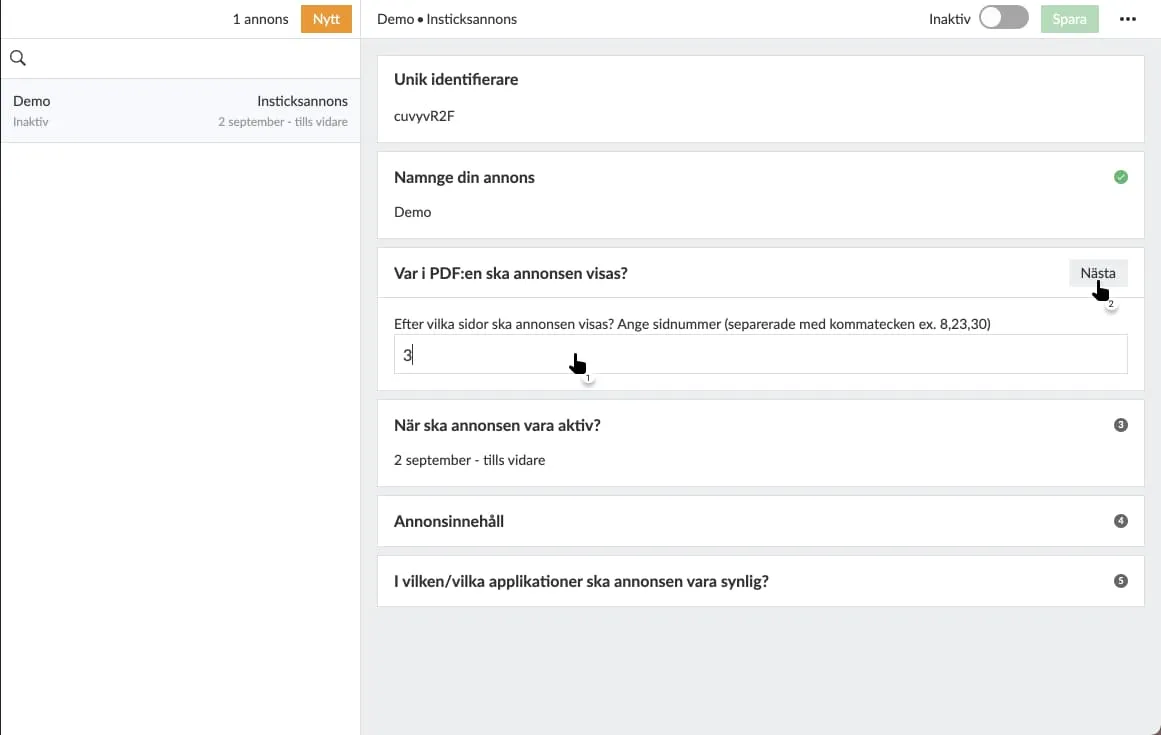
3. Specify on which page(s) your ad should appear.
If you want to select multiple pages, separate them with commas. The ad will appear after the specified page and before the next spread is displayed.
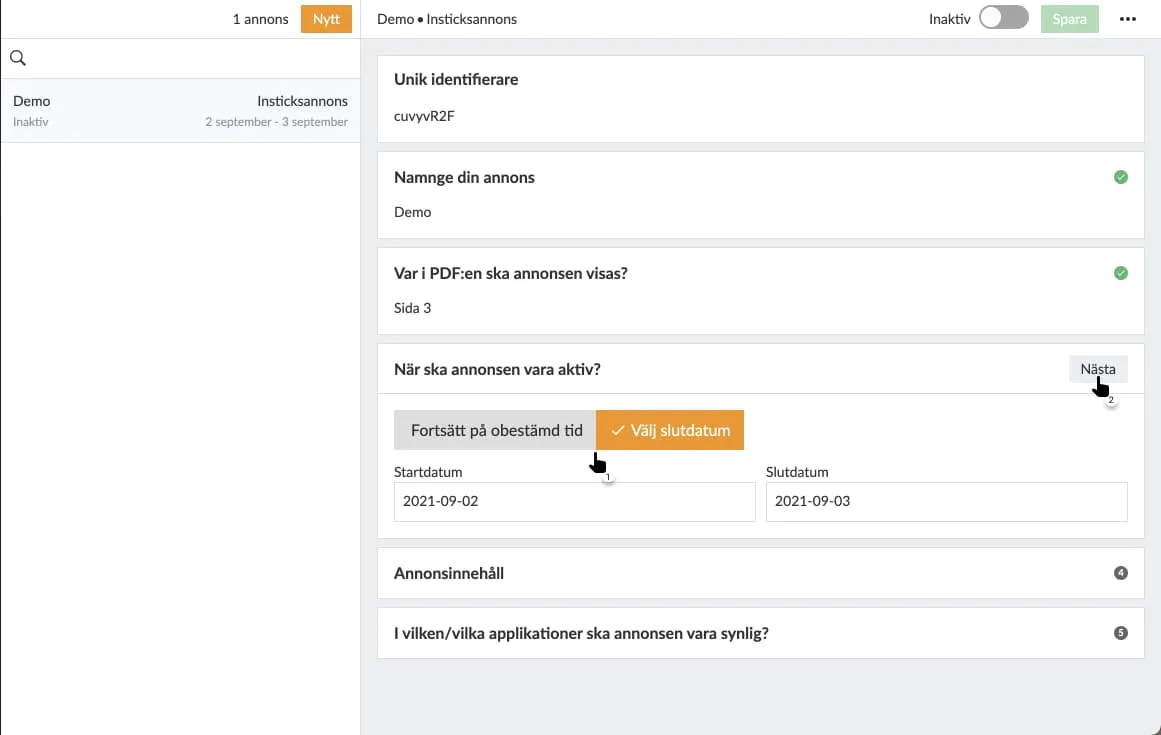
4. Select the date range during which the ad will be displayed.
You can choose to specify a start date and keep the ad active indefinitely, or select a specific date range by entering a start and end date. If you choose the latter, the ad will become inactive after the specified end date. Otherwise, you’ll need to visit the ad again to deactivate it.
5. Enter valid HTML in the form of an image tag.
Material Specifications
Portrait format: 1100 × 1700 px
Landscape format: 1700 × 1100 px
Image format: JPG, PNG, or GIF, max 500 kB
Video format: MP4 (H.264)
Delivery: All media must be hosted on HTTPS
Upload the material directly to ctabtn ( if you have an account) or provide an external link to the image or video. Both images and videos are supported. If landscape material is not available, the portrait version will be used even in landscape orientation, but we recommend submitting both formats.
Choose whether you want a different image for portrait and landscape orientations. You must specify one of these, but only one is required. For example, if you choose to provide content for portrait mode but omit landscape mode, Prenly will use the samecontent to display your ad regardless of whether the reader is viewing in portrait or landscape mode.
To create a clickable ad image—meaning readers can click on the image and be taken to the desired ad destination—you also need to include a link tag () that wraps around your image tag. The link destination (the href attribute)mustuse HTTPS for security reasons.
What is HTTPS?
HTTPS is encrypted communication with web addresses, and the protocol is specified as "https://". Comparehttp://example.com/ andhttps://example.com/. Many web browsers display a padlock icon in the address bar to indicate that it is an HTTPS connection.
Why is HTTPS required?
For security reasons, Android can only open secure links; therefore, all links that leave the e-newspaper must use HTTPS, even if you only have a web app. This also provides a more secure experience for your readers.
To display a dynamic ad—one that, for example, changes its content—you need to use JavaScript. JavaScript is accepted,butthe script must return an `img` tag and, if applicable, a surrounding `link` tag when executed.
Prenly willnotvalidate your HTML code. We recommend that you test your code on an HTML page.
Sample code for an image:
Portrait:
< img
src="{INSERT-IMAGE-SRC}"
alt="Advertisement"
width="1100"
height="1700"
style="display: block; width: 100%; max-width: 100vw; max-height: 100vh; object-fit: contain; margin: 0 auto;"
>
Landscape:
< img
src="{INSERT-IMAGE-SRC}"
alt="Advertisement"
width="1700"
height="1100"
style="display: block; width: 100%; max-width: 100vw; max-height: 100vh; object-fit: contain; margin: 0 auto;"
>
You can experiment with different ad sizes to find what works best. We recommend that they match your format.
Sample code for video (mp4):
H.264-encoded videos are required to work in Safari.
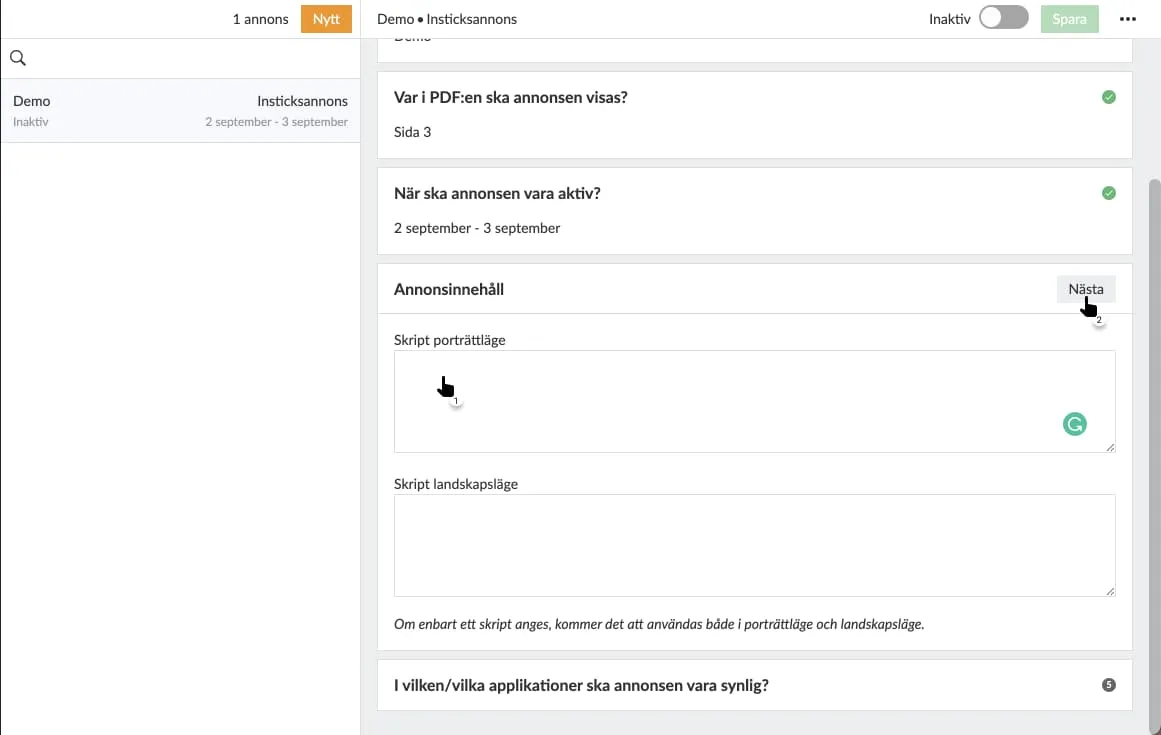
Specify image-related content for the ad.
Use ctabtn.com to create ads
One-time campaign: Create a campaign in ctabtn, copy the code, and insert it as an interstitial ad in Prenly Workspace. This is suitable when a campaign is to run for a limited period.
Recurring campaign space (recommended): You create a campaign space in ctabtn and insert its code once in Prenly Workspace. After that, you manage everything in ctabtn: which campaigns will appear in the space, when they start and end, and how they should be distributed when multiple campaigns are active at the same time. You do not need to go back into Prenly Workspace.
Here’s how to do it in Prenly Workspace:
- Create the campaign or campaign space in ctabtn.com and copy the code for portrait and landscape orientations, respectively.
- Follow steps 1–4 above.
- Paste the code for portrait orientation into the portrait field and the code for landscape orientation into the landscape field.
- Activate the ad and save.
Always check the result in the app or browser after publishing.
If you change the creative, target URL, or display orientation for a single campaign in ctabtn, you must copy the new code and replace it in Prenly Workspace. If you’re using a recurring ad slot, the code never needs to be replaced.
When no campaign is active in the ad space, the ad codeautomaticallycallswindow.PrenlyAd.collapseAd(). The Prenly app then hides the entire ad space so that the reader never sees an empty space. Therefore, keep the recurring ad active in Prenly at all times.
Title Control
A campaign can be limited to one or more titles. If the field is left blank, the campaign will appear in all titles where the ad space is present. Statistics are also reported by title, so you can see where the campaign performs best.
Consent and Privacy
The ad code reads the reader’s consent via window.PrenlyUserConsent(CMP). The ad is displayed regardless of consent—even if the reader has not consented to ad tracking, the ad will still be displayed, but the statistics are collected anonymously and in aggregate. No TC strings, cookies, or identifiers are stored for individual readers.
Statistics and Reports
For each campaign, the number of impressions, number of clicks, and click-through rate are measured—both in total, by month, and by title. Each campaign is reported separately, even when multiple campaigns share the same ad space.
You can also send reports directly from ctabtn to any email addresses—either on a one-time basis or automatically every week or month. The report shows the campaign name, where it was displayed, the number of impressions, and the number of clicks.
Common Mistakes That Can Occur on ctabtn.com
- The material has been updated in ctabtn, but the old code remains in Prenly Workspace.
- Only portrait-oriented content has been added, which results in a poor display in landscape mode.
- The image is larger than 500 kB, which causes the ad to load slowly.
- Content hosted on HTTP instead of HTTPS is not displayed in the app.
Using JavaScript from an ad server
If you use JavaScript from an ad server, you can take advantage of some additional features that were developed for the web browser in May 2025 and are included in the iOS app starting with version 14.1.1 and in the Android app starting with version 12.10.0. As of May 2025, these new features are being used by a publisher who uses Google Ad Manager, and it is up to you to ensure that your integration works properly.
The new extensions allow the ad script to capture the user’s consent settings in the PrenlyUserConsent object. And with the PrenlyAd object, you can instruct the app to hide an unbooked ad and capture data about the base URL and ad title. See the technical description at the bottom of this page.
6. Select the application(s) that will display the ad.
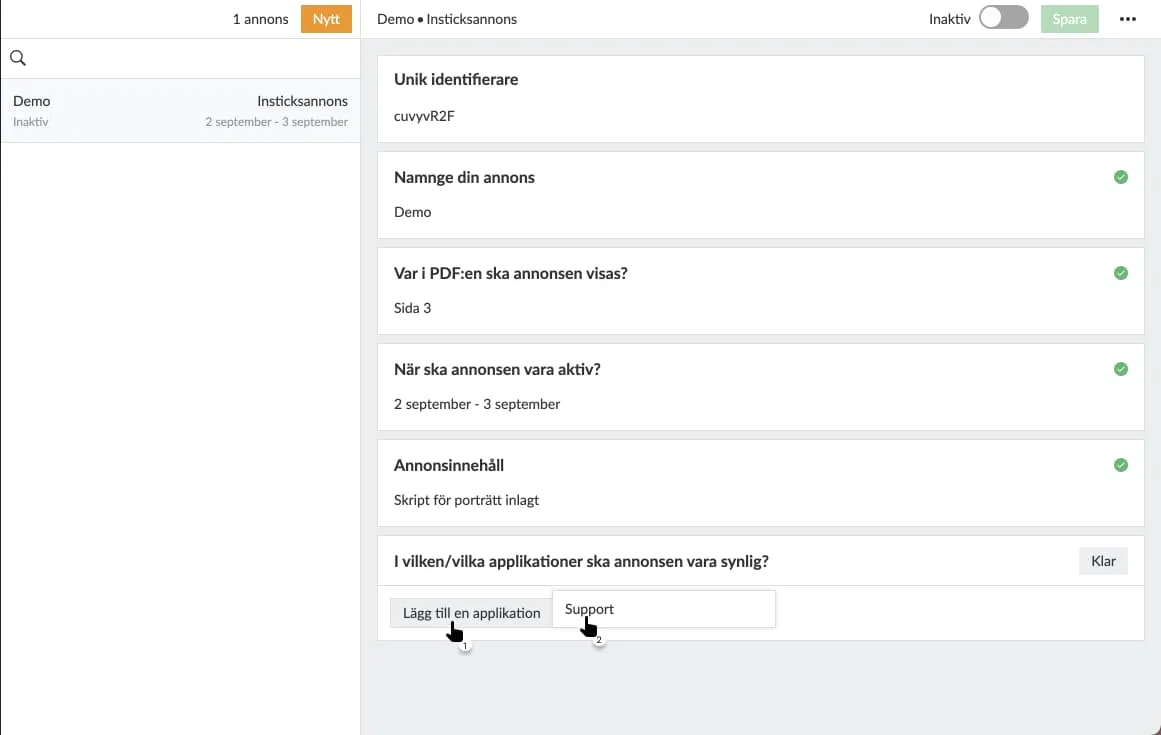
7. Select which titles within each selected application should display the ad.

8. Select "Save" to save your settings.
If you cannot save after the last setting, you have missed a setting. Look for a red dot on the right-hand side and continue configuring the settings from that section.
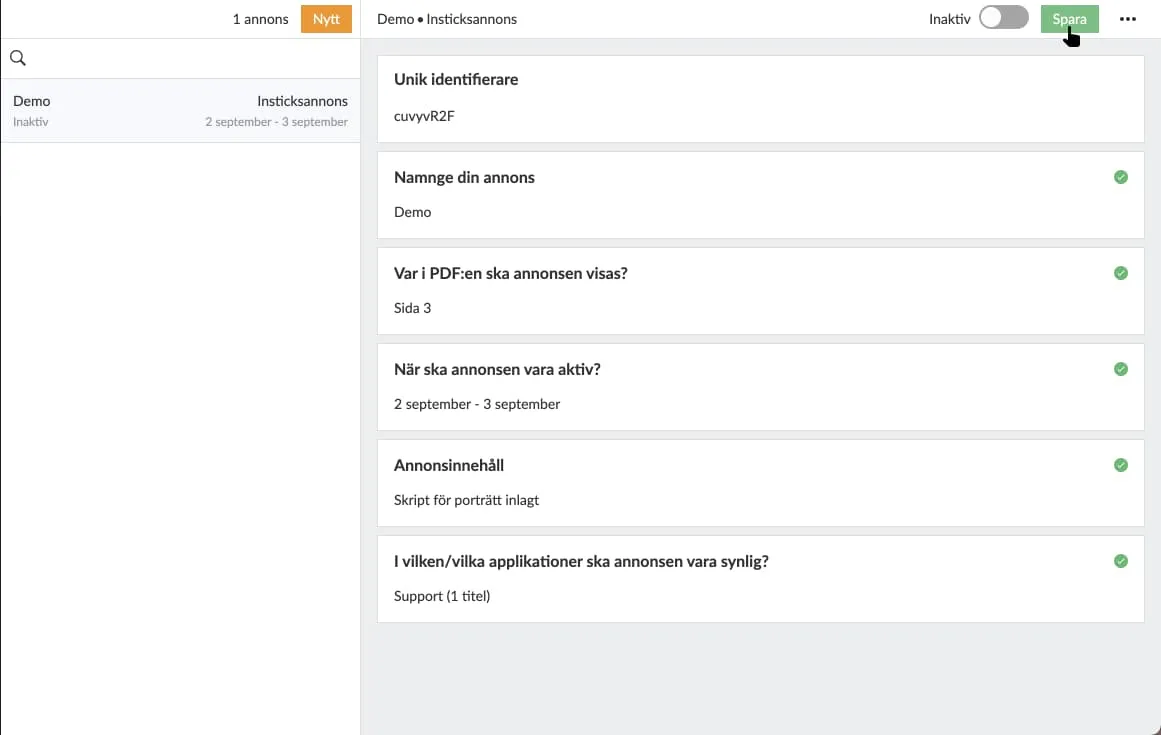
9. Activate your ad using the toggle at the top.
If the ad is inactive, you will activate it; if the ad isactive, you will deactivate it.
An active ad will be sent to your e-newspaper and, based on your settings, will be displayed to your readers in newspaper reading mode.
An inactive ad will not be displayed to readers when they swipe past the selected newspaper page.
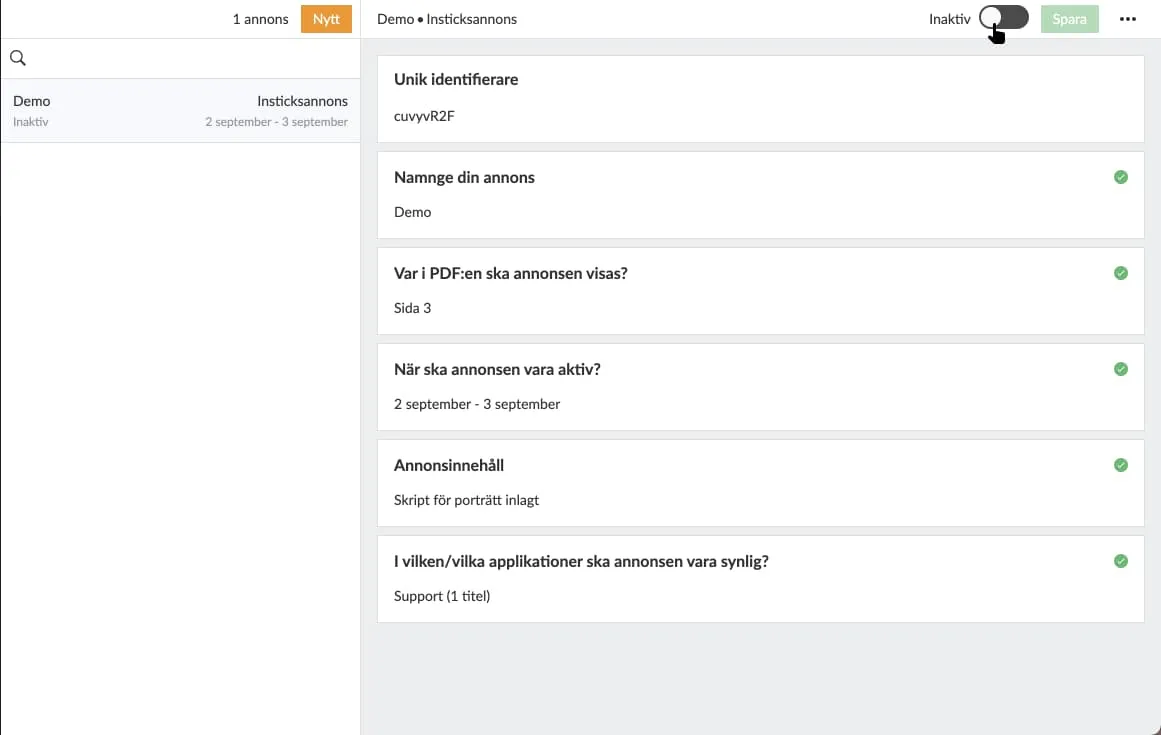
 Example of an active ad.
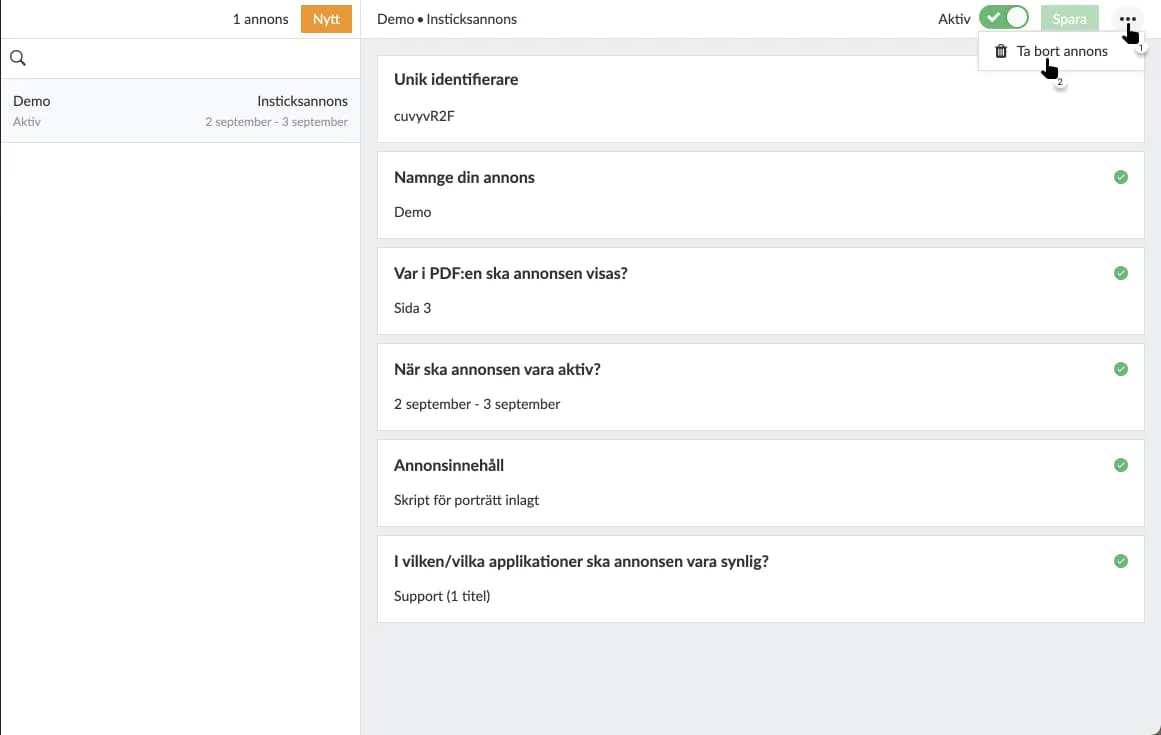
10. Remove ad.
To delete a selected ad, tap the three-dot menu in the top-right corner and then select “Delete Ad.” The ad will be deleted from Prenly Workspace and deactivated in your e-newspaper if the ad wasactive prior todeletion.
Integration with external ad systems
It’s possible to dynamically load in-article ads from external ad systems via JavaScript. This requires a good understanding of your ad system and its capabilities, as well as knowledge of JavaScript, and may not work for everyone.
PrenlyAd
The PrenlyAd object contains the "collapseAd" function, which you can use in your script to instruct the app to hide an ad slot when the ad system cannot deliver an ad. Instead of displaying an empty ad slot, the entire ad area is hidden.
You can retrieve the "baseUrl" and "titleSlug" from the ad’s position in the e-newspaper to create a virtual URL in your script that you can use to target your ad from the ad system so that it appears under a specified title in the app.
Example of how to create a virtual URL that can be used for targeting.
url = window.PrenlyAd.baseUrl + "/p/" + window.PrenlyAd.titleSlug;
window.PrenlyAd= {
collapseAd: function // function that should be called to notify the native app that the ad is collapsed
titleSlug: string // title slug that identifies the title associated with the interstitial ad
baseUrl: string // base URL of the app
}
PrenlyUserConsent
You can use the PrenlyUserContent object to retrieve the user’s consent settings and, based on those, determine whether to load dynamic ads from a third party (if the user has consented to ads) or internal static ads (when consent is not given).
The object contains parameters to pass along the user’s selections from the CMP dialog and the TC string, if available.
In cases where the iOS app has an ATT (App Tracking Transparency) prompt—which is sometimes required by Apple—the "att_granted" parameter is included.
window.PrenlyUserConsent= {
cmp: string, // CMP module name
cmp_vendor_grants: dictionary, // dictionary containing vendor grants info if available
cmp_purpose_grants: dictionary, // dictionary containing purpose grants if the CMP provider supports it
prenly_purpose_grants: dictionary, // only available if the app uses Prenly CMP as the provider
tc_string: string, // TC string if the CMP provider supports it
att_granted: boolean // only if the app has ATT configured
}
Support
Questions about in-app ads and ctabtn:hello@prenly.com