


Other articles by Alina
-
JS Bridge in Prenly – Embed Interactive Web Content
18 Sep 2026
This guide explains how to embed your own interactive web content (like puzzles, forms, or custom dashboards) onto your app's start page and have it communicate with the native Prenly app using our JavaScript (JS) Bridge. Note that Helpdesk team needs to activate JS bridge before it’s possible to use.
-

Prenly Workspace: Digital Publishing Workflow for Publishers
14 Sep 2026
Publishing a digital newspaper or magazine involves much more than uploading a PDF. Editorial teams need to create and organize content, manage editions, collaborate across teams, control access, schedule publication, connect existing systems and make sure readers receive the right content at the right time.
-
Expand Your Digital Archive
8 Jun 2026
A certain amount of archive content is usually uploaded during the onboarding process, but more can be added at any time. A larger archive gives readers access to more historical content and makes it easier to find articles about specific topics, people, places, or events. Readers can search across both recent and older publications to revisit past articles or explore how a topic has been covered over time. Attract new readers with more content The archive can also help potential subscribers discover your content. Even non-subscribers can search the archive and see how much content is available on a topic they are interested in. It is also possible to make selected archive publications publicly available, giving readers a taste of your content before subscribing. How to highlight historical content Older issues can be highlighted in different ways. For example, you can automatically display a publication from 5, 10, or 20 years ago with the flashback component, or feature a special anniversary issue using the Editor’s Pick component. A larger archive also helps preserve your publication’s history and makes it easier for readers to explore past coverage of important events and stories. Learn more about the different components → How to Activate It If you are interested in adding more archive content, please contact us at hello@prenly.com. We’ll discuss: The amount of archive content you would like to add Pricing and import options The expected timeline How the archive material should be delivered How to Send Archive Material Archive material should be uploaded to us using an FTP client. The archive should consist of standard PDF files. To ensure a successful import, all files must follow a consistent naming structure. Read more about the correct naming structure here →
-

Why Seamless Reader Experiences Are Becoming the Real Competitive Advantage in Digital Publishing | Prenly
14 May 2026
For a long time, publishers have focused their digital strategy on content, distribution, and monetization. Those priorities still matter. Strong journalism, trusted brands, and sustainable subscription models remain the foundation of long-term value.But a shift is becoming harder to ignore.Readers no longer compare digital news products only to other publishers. They compare them to every digital service they use each day. The expectations shaped by streaming platforms, audio apps, ecommerce, and mobile-first consumer products do not disappear when someone opens a news app or digital edition. They carry over.That matters because competition in publishing is no longer defined only by what content is offered. Increasingly, it is shaped by how effortless and connected the experience feels around that content.In mature publishing markets, where digital products are already established and reader expectations are high, this shift is becoming especially visible. But the same dynamic is increasingly relevant across international publishing as well. In a more competitive and fragmented digital environment, experience quality is becoming a real strategic differentiator. Content Alone Is No Longer Enough This does not mean content has become less important. It means content alone is less able to carry the full weight of retention. A reader may value the journalism, trust the brand, and even pay for access. But if the product experience feels slow, fragmented, confusing, or inconsistent, that relationship weakens over time. Not always dramatically. Often quietly. Habit is shaped by more than editorial value. It is shaped by ease. By continuity. By whether returning feels natural or effortful. That is one reason why publishers are seeing a growing gap between content quality and product performance. Good journalism can attract attention. But a strong digital publishing experience and a more compelling digital publishing platform experience are often what determine whether readers return frequently enough to build a habit around it. Readers Now Expect Continuity Everywhere Reader behavior has become more fluid. A subscriber may begin with a headline alert on mobile, open a story during a commute, return later on another device, switch into audio while multitasking, and browse an edition in the evening. None of this feels unusual to readers. It is simply how digital behavior works now. What feels unusual is when the product does not support that movement. Readers increasingly expect continuity across formats, devices, and contexts. They want a product that allows them to move naturally between editions, articles, audio, archives, alerts, and related content without friction. They do not think in terms of isolated product layers. They think in terms of one experience. That is why continuity matters so much. An easier reading experience across app, web, and edition formats does more than improve usability. It shapes the sense that the product belongs in the reader’s daily routine and supports stronger digital reader engagement over time. Fragmented Digital Products Quietly Weaken Engagement One of the more underestimated problems in digital publishing is fragmentation. In many organizations, the digital product has evolved in layers. Replica editions live in one environment. Articles in another. Audio somewhere else. Notifications are handled separately. Different teams manage different surfaces. Over time, the user experience becomes harder to keep consistent, and the operational model becomes harder to simplify. This fragmentation has a cost. Readers feel it as inconsistency. They meet different navigation patterns, different reading modes, and different levels of polish depending on where they enter. Teams feel it as duplicated work, slower product decisions, and a growing distance between editorial ambition and technical reality. That is why the future is unlikely to belong to isolated digital products. It will belong to publishers who can create more connected digital publishing solutions and a more unified publishing experience that feel coherent to readers and manageable to teams. Why Friction Impacts Retention More Than Many Publishers Realize Friction is often treated as a minor product issue. In reality, it can be a retention issue. Not because every point of friction causes an immediate cancellation, but because friction changes the emotional texture of the product. It adds effort where readers expect flow. It interrupts moments that should feel simple. It makes returning slightly less automatic. Most of the time, the impact is invisible. A slower path to the right article. A reading mode that feels awkward on mobile. A jump between formats that breaks concentration. A feature that exists, but does not feel integrated. Small moments like these rarely become explicit complaints. They simply reduce the likelihood that the product becomes a daily habit. In subscription-driven publishing models, even small improvements in engagement frequency can have a meaningful long-term effect on retention and perceived value. That is why reader engagement tools matter most when they are part of a smooth overall experience, not when they are added as isolated features. Engagement grows when the product reduces effort, supports continuity, and makes the next action feel obvious. Over time, that can contribute to stronger digital publishing retention, not just better short-term usage metrics. Accessibility and Simplicity Are Strategic Advantages Accessibility is often discussed too narrowly in publishing. It is framed as a requirement, a standard, or a specialist area. But in practice, accessibility is also a product advantage. When a digital newspaper becomes easier to read, easier to navigate, easier to listen to, and easier to understand, it serves more people well. That includes readers with formal accessibility needs, but it also includes older audiences, mobile readers, multitasking readers, and anyone who benefits from clearer, simpler interaction. The same is true of simplicity. Simple products are often stronger products. Not because they do less, but because they remove unnecessary effort. They help readers focus on content instead of interface logic. They make digital experiences feel calmer, more intuitive, and more trustworthy. That is one reason why product choices like Prenly Reader matter beyond feature sets alone. A reading environment designed to feel accessible, engaging, and easy to use speaks directly to the broader shift in reader expectations. The Future Belongs to Connected Digital Experiences The next phase of digital publishing will not be defined only by which formats publishers offer. It will be defined by how naturally those formats work together. That points toward a more connected model. Not more products layered on top of one another. Not more disconnected tools. But a digital ecosystem where editions, article views, audio, alerts, archives, and publishing workflows support one another inside a more unified experience. This is where product maturity becomes increasingly visible. Readers may not describe it in technical terms, but they notice when a service feels complete. They notice when movement between content types feels natural. They notice when the experience feels designed rather than assembled. For publishers, that makes experience quality a competitive issue. A more connected digital publishing platform is no longer only about operational capability. It is also about how the brand is felt by readers in everyday use. A Smarter Path Forward for Publishers This does not mean every publisher needs a dramatic transformation program. In many cases, the smarter path forward is more measured. Publishers do not necessarily need more products. They need better-connected experiences built around how readers actually behave. That may involve improving continuity between content types. It may involve simplifying the reader journey. It may involve making the digital product easier to manage internally through tools like Prenly Workspace. It may involve rethinking how the edition, article view, audio, and engagement layer work together rather than treating them as separate initiatives. The key point is strategic: progress does not always come from adding more. Often, it comes from making the whole experience feel more coherent. For publishers thinking about how to evolve without creating unnecessary disruption, that is also why a transition-oriented perspective matters. A path to join Prenly is relevant not because change itself is the goal, but because modernization works best when it preserves what already delivers value and strengthens the experience around it. The Competitive Battle Is Becoming More Experiential Digital publishing has spent years investing in content strategy, subscription logic, analytics, and product development. All of that remains important. But the next competitive battle is becoming more experiential. The publishers that stand out will not only be the ones with strong journalism or broad product portfolios. They will be the ones that make digital reading feel more natural, more connected, and more worth returning to. That is not a small UX detail. It is a strategic shift. The next generation of digital publishing will not be defined only by content quality, but by how naturally readers can move through the experience around it. For publishers evaluating how connected digital experiences can strengthen engagement, retention, and long-term subscriber value, this is becoming one of the most important strategic questions to solve. If you want to explore how that can take shape in practice, you can book a demo or learn more about Prenly’s broader digital publishing solutions. FAQ Why does reader experience matter so much in digital publishing now? Because readers increasingly compare news products to the best digital experiences they use elsewhere. Content still matters, but experience quality has a growing impact on frequency, habit, and retention. What affects reader engagement in digital publishing most? Reader engagement is often shaped by continuity, ease of use, accessibility, and how connected the experience feels across formats and devices. Small points of friction can have a bigger long-term effect than many publishers realize. Why do fragmented digital products weaken retention? When editions, articles, audio, and engagement features feel disconnected, readers experience more friction and less continuity. Over time, that can weaken habit formation and reduce return frequency. Are accessibility and simplicity really competitive advantages? Yes. They improve usability for a wider range of readers and make the overall product feel easier, calmer, and more intuitive. In digital publishing, that can support both engagement and loyalty. What does a more connected digital publishing model look like? It usually means editions, article views, audio, alerts, archives, and internal workflows work together as part of one broader experience rather than existing as isolated product layers.
-

Prenly at Gratistidningarna’s Branschdag 2026 in Knivsta
16 Apr 2026
On April 17, Prenly will attend Branschdagen 2026, organized by Gratistidningarna, at Nova Park in Knivsta.The event brings together stakeholders from local and free newspapers for a day focused on industry development, business opportunities, and the future. Branschdagen 2026 serves as a meeting place where publishers, media companies, and suppliers from across Sweden come together. It offers an opportunity to exchange experiences, build new connections, and discuss how free newspapers and local media can evolve in a changing media landscape.This year’s theme, “the important choice”, highlights topics such as: strategic decisions for local newspapers choices of technology and suppliers how the industry is affected by the 2026 election year future revenue models in local journalism The program includes presentations from PostNord, IRM’s advertising statistics, as well as interviews and insights from industry players such as Bonnier News Local and AdsPrint.View the program here -> Prenly on site – focusing on the future of digital offerings Prenly looks forward to being part of Branschdagen in Knivsta and meeting both existing and new contacts within free newspapers and publishing.On site from Prenly, you can meet our colleagues Mattias Farkas and Elias Swartswe, who will be happy to tell you more about how: apps can become more than just e-papers user experience and engagement can be improved digital products can strengthen the business of local media We see great value in discussing how technology can support the development of the industry – from e-paper to more dynamic and revenue-driven solutions. See you at Branschdagen 2026 in Knivsta Are you attending Branschdagen 2026 or part of Gratistidningarna? Take the opportunity to meet us on site and talk about how we can shape the future of local media together.
-
Configure Analytics – Enhanced measurement
30 Mar 2026
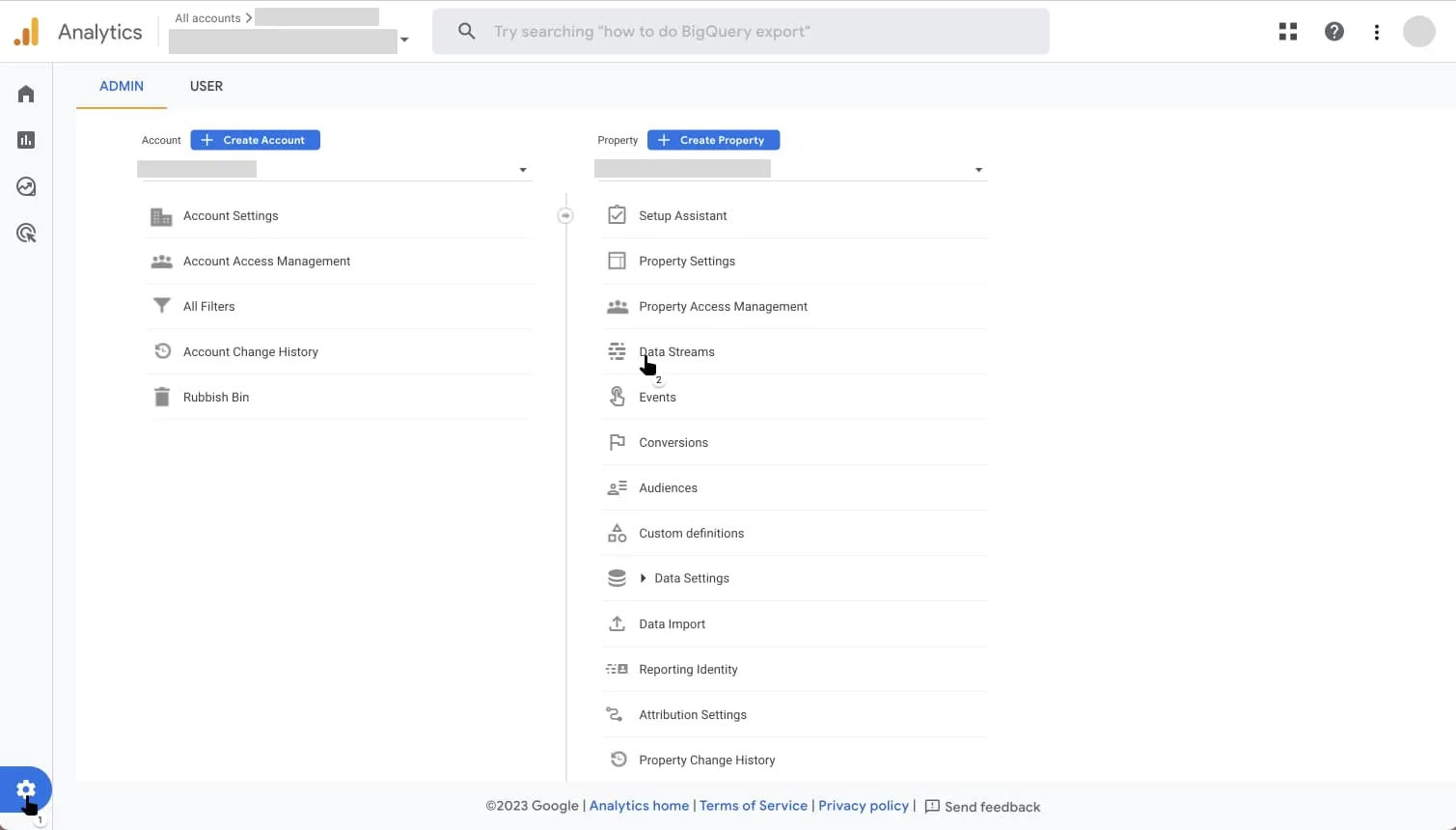
If you are interested in tracking data via Google Analytic's "page_view'" concept then we highly recommend you enable the enhanced measurement on the web app's Analytics property.The web app is using the History API web API to present the reader within the replica reading mode and article reading mode, a technology which Analytics does not per default enable to track as a page view. This means that on default the page view tracked data will potentially miss a lot of page view event hits as your users engage with the web app. The Prenly-specific reading events are not affected by this.To enable Analytic's enhanced measurement for web apps is easy! In this guide, we will guide you on how.Activate enhanced measurement Step 1. Complete Get started with statistics.Step 2. Log in to Google Analytics and select the correct Analytics account and Analytics property.Step 3. In the left menu, select Admin. In the main view under the Property menu, select Data Streams.Step 4. In the Data Streams menu, select the Web panel. Select the web app data stream to enable enhanced measurement. Step 5. Activate(toggle) Enhanced measurement.Step 6. Once enhanced measurement is enabled, you are done.You can, if you wish, configure enhanced measurement; however, the enhanced page view tracking is enabled by default and cannot be turned off.
-
Possibilities within menu settings for the app (custom tabs)
30 Mar 2026
Read more about some of the possibilities in custom tabs to find out which option is best for you. The possibilities are compared below: Regular website/landing page Single page application (SPA) Read more about some of the opportunities within custom tabs to find out which option suits you best. Possibilities compared below: Ordinary web site / landing page Single Page Application (SPA) Summary Ordinary web site / landing page: Navigation: Full-page reload on every click Performance: Slightly slower due to frequent reloading Technical expertise: None needed – easy to implement User Experience: May feel less seamless compared to an app-like interface Best for: Static pages, simple integrations Drawbacks: Less smooth, might need adjustments for a better mobile experience Single Page Application (SPA): Navigation: Smooth transitions, no page reloads Performance: Faster after initial load, optimized experience Technical expertise: Requires developer knowledge of JavaScript User Experience: Smooth, app-like interactions Best for: Dynamic content, news updates, interactive features Drawbacks: Requires JavaScript support, can be complex to develop ... Detailed explanation Ordinary web site / landing page What is it? On traditional websites, navigation triggers a full page reload for each click, refreshing the browser to display new content. This happens because the browser requests a new HTML document (a ‘document request’) to display an updated view. What are the benefits? This is the easiest way to include the customer’s website in their apps. The URL to the page already exists and the customer can simply add it in a new external link in the app. What are the drawbacks? Every click reloads the entire page, which can feel slow and interrupt the flow compared to the smooth experience of a SPA. If the landing page isn’t mobile-friendly, it might come across as cluttered, hard to navigate, or out of sync with the app’s look and feel. Traditional websites lack the dynamic, app-like interactions/feel that SPAs offer, making them less ideal for news articles or content that updates frequently. In which case do we recommend clients use it? Low technical expertise: This option is ideal for customers without technical knowledge or a developer on hand. Simple content integration: If the goal is to display static or additional information (e.g., contact details, event pages) rather than interactive features or frequent updates, a traditional website is sufficient. Quick implementation: When a fast and straightforward solution is needed, adding an existing webpage to the app can save time and effort. Single Page Application (SPA) What is it? SPA (Single Page Application) allows seamless navigation by dynamically fetching and displaying new content without reloading the page (i.e. by the web browser making a document-type network request). Unlike traditional websites, which use navigation events to load new pages, SPAs use transition events to update content within the same page. A SPA commonly uses a dedicated GUI (Graphical User Interface) with buttons or menus to navigate between “pages”. Each rendered page is rendered by the client (web browser) instead of rendered by the server for a traditional page. Content is fetched from the server, CMS, to be rendered “on the fly” by the web browser ensuring new articles appear without manual updates affording a more app-like user experience. In short, an SPA is dynamically rendered by the web browser. What are the benefits? SPAs update content on the same screen without switching to a new page, offering a smooth, intuitive experience similar to mobile apps. After the initial load, SPAs can feel faster since they fetch only new data instead of reloading the entire page, making them ideal for frequently updated content like news. Developers have full control over rendering, turning raw data into user-friendly visuals efficiently, reducing processing, and ensuring responsive performance. What are the drawbacks? SPAs rely on JavaScript, which can cause compatibility issues with outdated browsers when the SPA relies on a specific Web API, for example social sharing, requiring developers to add fallback code and in turn increases complexity. Rendering occurs in the user’s web browser on their device, where the web browser commonly processes raw data (e.g., JSON) and downloads large files upfront, making the initial load slower than traditional websites. This process also consumes more battery and processing power, affecting mobile devices or older hardware. However, after setup, SPAs tend to respond faster as no additional page loads are needed. In which case do we recommend clients use it? When the goal is to create a seamless, responsive design similar to a mobile app. Ideal for content with the latest news or live updates where content refreshes dynamically. Suitable for clients with a developer who can handle JavaScript-heavy projects and how to optimize for different devices and browsers. ... FAQ How long would you estimate it takes to build a SPA? The time required depends on the developer’s experience and the complexity of the SPA. In general, building a basic SPA can take around 1–3 development days, with design, development, and testing. Can we display ads? Yes, you have full control over the content displayed in your custom tab. The only restriction is mentioning Apple or Google, as this could result in the app being rejected during the review process. What is the recommended number of menus in a SPA for the best user experience? When adding a menu bar within the SPA to allow readers to switch between different pages, consider how many menus are really needed. Since the SPA is embedded in an app that already has multiple tabs, an overly detailed menu can feel cluttered. To keep it user-friendly, we recommend keeping the menu minimal and focused. Do external links from our articles automatically open in a web browser, or does it depend on our own hyperlink settings? The link behavior is depending on the target attribute. If you do not specify a target attribute, or set it as (_self) the app will treat it as the default target behaviour, which means that the link will be opened within the current view. Can we force certain pages to open in a web browser instead of in the app, for example by using target="_blank"? Yes, this is possible. By setting the target attribute to _blank, the app will attempt to open the link in a new browser tab or WebView. However, in SPAs, this is not commonly used, as it breaks the seamless “in-app” experience that SPAs are designed to provide. Do I need to implement a refresh function for article pages in the mobile app when users scroll down? We recommend adding a refresh or reload function to ensure the page updates properly as users scroll down.
-

Free days access
18 Feb 2026
What is it? The Free Days access allows you to give interested readers free access to the content of your app for a limited number of days. This is ideal for potential subscribers who want to try your app before subscribing. You decide how many days the free trial period will last. When a user opens the app, their device is automatically registered. The registration starts the timer for the free trial. The user will then have access to the selected content for the number of days you have set. How to set it up? To enable free trial days authorization, please contact us, so we can activate the function for you. Please include the following: 1. number of free trial days: specify the number of days the free trial will be valid. 2. Package slug: If you create the package yourself in PWS, do it as described below and enter the slug of the package to be accessed. How to set up a package in PWS? This step can be skipped if the package and service are already set up. You need to create a service and a package to support the publishing tags. In Workspace, go to Settings -> Package Management. Click on "Services" -> "New". Add a name for the service and select the title(s) you want to give access to. Then create a new package and link it to the service you just created. Click on "Services" -> "New" Add a name to the service, give it a slug and select the service you just created. Send us the selected slug by email. If you need help configuring this, we will be happy to help you. Good to know Currently, only one package can be connected to the authorizer. The free days authorizer only works in the native apps (iOS and Android). The free trial period starts when the app is opened and the device is registered.
-
Opening hours Support
24 Oct 2025
Mon–Fri, 08:00–17:00 (CET/CEST)E-mail: hello@prenly.comPhone: +46 (0)31-388 47 40The support is closed on Swedish national holidays, but feel free to leave us a message on hello@prenly.com or in the chat at anytime!Swedish national holidays 2026January 1 – New Year's DayJanuary 6 – EpiphanyApril 3 – Good FridayApril 6 – Easter MondayMay 1 – Labour DayMay 14 – Ascension DayJune 6 – National Day of SwedenJune 19 – Midsummer EveDecember 24 – Christmas EveDecember 25 – Christmas DayDecember 31 – New Year’s Eve
-

Apple | Digital Services Act
24 Oct 2025
Apple has decided to act on the European Union (EU) Digital Services Act (DSA) legislation. All Apple developer account holders must specify their trader status according to the Digital Services Act. If the account holder does not provide nor verify information regarding their developer account then a) the iOS app cannot be updated; b) in-app payments may be delayed; c) Apple might decide to remove the iOS app from being available in certain countries or regions. Am I a trader? The account holder will be asked by Apple if they have a "trader provider account" or a "non-trader provider account", or, more simply: Are you a trader? The definition of a "trader" is loosely defined, but in short it is any business acting for purpose relating to the trade or profession. In short, anyone who can gain financial gain by the iOS app or the content within. For a Prenly app, the term "trader" is summarised as anyone whose content is not fully publicly available is considered a trader. If all your publications (regardless of which Prenly title they belong to) are freely available then you may not be a trader. If at least one publication requires login/subscription then you are a trader. If you are not a trader, the account holder may select the option to inform Apple that the account is a non-trader provider account. However, since the term for a trader is loosely defined and Apple might have their own interpretation, it is recommended for any iOS account holder to specify the account as a trader-provider account to reduce complications moving forward. This manual will assume that the account holder wants to specify the developer account as a trader-provider account. Comply with Apple's requirement regarding the Digital Services Act You will be asked to provide a phone number and e-mail address to comply with the requirements according to this manual and to provide and verify information regarding your developer account for Apple and the Digital Services Act. Apple will publish this information publicly on the App Store in certain countries or regions. Step 1 - Login to your Apple Developer Account as the account holderLink that leads directly to the correct page https://appstoreconnect.apple.com/business/ Step 2 - Click Complete Compliance Requirements for *your account name* Select the link starting with "Complete Compliance Requirements". Step 3 - Click Complete Compliance Requirements (new page) Select the link "Complete Compliance Requirements". Step 4 - Select "This is a trader provider account" and then click Next Select the option "This is a trader provider account". Step 5 - Enter your phone number and email address Enter your organisation's public contact information. Step 6 - You will now be asked to verify your phone number and email address Check your e-mail inbox for the e-mail from Apple and SMS from Apple. Step 7 - Read through the information, and then click Confirm Verify the information and select "Confirm" to complete.
-

Google Analytics - Get started with statistics
24 Oct 2025
Before you start To start collecting statistical data you will need a Google Analytics account. 1. Create a Google Analytics account via google.com/analytics. 2. Select Get started today to create an account or to sign in to your current account. Get started 1. Notify hello@prenly.com that activation of GA can begin, include this information: If you have more than one e-paper, state which ones you wish to collect data from. Which individual(s) you would like to represent the owner of your data in the underlying Firebase project. Please note you will need an e-mail address associated with a Google Account that has edit rights to your chosen Google Analytics account. 2. The customer service team will invite you as an owner of the underlying Firebase project and you will receive an e-mail from Firebase. After you have received the invitation you are ready to continue with the below. Activate statistical data gathering 1. Log in to Firebase Console 2. If you are prompted to select a project, select the e-paper project you would like to enable statistic gathering for. 3. Select Project settings in the cogwheel menu. Select "Project settings" on your Firebase project to enable statistics. 4. Select the sub-menu item Integration 5. Select Enable on the card Google Analytics Select "Enable" on Google Analytics integration card to enable statistics. 6. Select a Google Analytics account within the drop-down menu to host your statistical data on the page Configure Google AnalyticsIf you are unable to select an Analytics account, then you do not have edit rights to your Analytics account. 7. Select Enabling Google Analytics to create a new Analytics property on your Analytics account, where statistical data will be gathered and aggregated by the created property. 8. Select the link for the newly created Analytics property within Firebase. You will be taken to Analytics. Select Property Settings; configure your new property by setting industry (most likely "News"), the correct reporting time zone, and currency for your e-paper. 9. Set a name for the new property in order to easier find the property in the future. 10. Send an e-mail to hello@prenly.com stating you have finished the setup for your e-paper by including which e-paper you have activated the statistics for. 11. Once Prenly's customer service has received your e-mail, they will activate your web app and notify you that it has been activated. 12. You are now done and ready to view your new statistical data within your Analytics account by selecting the created Analytics property. How long will it take till I see my data? Once the statistics have been activated, Google will usually take 12-24 hours to allow Analytics to start aggregating your statistical data. Why don't I see any data even though I have waited over 24 hours? In order for Prenly to transfer the data to Analytics the readers must have given consent for user analysis. You can enable your readers to give consent to be tracked by creating a consent dialog in Prenly Workspace and associating it with your e-paper application.
-

App icons
24 Oct 2025
What do we need to get started? To update your app icons, we need new image files in 1024 × 1024 px (SVG). The app icon must not contain an alpha channel/transparency, while the splash icon may have transparency. For Android, we also need a separate, simplified notification icon with an alpha channel.
-
Social sharing
24 Oct 2025
Under "application settings" you can enable "social sharing" and decide whether readers should be able to share unhindered or restricted. See the guide for how to set it up here. In this guide, we will show how your readers share articles or article spreads in the e-magazine. First, log in to the e-magazine either via the web or via the app. Then choose which edition you want to share the article/spread from. Once inside the edition, there is a menu in the middle -> click on the "three-dot menu" -> and then select "share spread" from the PDF mode. Here you get all the different ways and platforms you can share spreads or articles too. To share a specific article, click on the article you want to share so that you end up in "article reading mode". Then click on the "three-dot menu" again --> and then select "share article". Here are two examples of what it might look like. Select "share link" creates a URL that you can easily copy and send. Or, choose to share to "Facebook", and a pop-up box will appear where you can adjust the sharing text and to whom you want to share the article spread/article too. And that's how easy it is to share articles or spreadsheets ?
-

Create/send push notification
24 Oct 2025
From Prenly Editor, you can send an unlimited number of push notifications to your reader's iOS- and Android devices. This article will help you get started. When a user clicks on a push notification, the app opens and displays the page you set up when you created the push notification in Prenly Work Space. How to send a push notification Click on the drop-down menu "Marketing" and select "Notifications" Here, you can choose between a one-time push notification or a recurring push notification. Recurring notifications are useful for content such as “New issue available,” weekly highlights, or ongoing campaigns. Select "New" 1. Name your push notification Name your push notification to make it easier to search for it later. This name will not be visible to the user. Tip! With the tab key on your keyboard, you can easily jump to the next field, for example from "Name your push notification" to "Which applications should the push notification be sent to". 2. Select which application(s) the push notification should be sent to Since your notification can be sent to multiple applications, you need to choose which application(s) will deliver your push notification. If you choose to send the push notification to more than one application, in the next step you will only be able to choose to open the application itself, not for example a specific issue or article. 3. Select what the push notification should open Select what the push notification should open when the user clicks on it. There are five possible choices: App, Tab, Publication, Article, Page. If the user has not updated their app (iOS app version 12.3.0 or later and Android app version 11.14.0 or later), the user will receive your push notification as if it was sent as open as App. If you are unsure what app version you have for your app, visit the App Store and Google Play and search for the app, where you will find the latest published app version number. App If you choose App, simply the application itself will open. Tab If you choose Tab, a new menu will appear where you can select which tab in the application should be opened. If you choose a tab that displays content from a web domain, you also have the option to enter a specific address, for example to an article. Note that the article needs to be on the same web domain as the tab is set to display. That is, the article you want to show must be available on the same domain as the one pre-filled in the field. If you just want the tab to open, you can simply leave the specific URL field blank. Publication If you choose Publication, you first need to select which Title you want to send the push notification to, and then which publication should be opened. Article If you choose Article, you first need to select Title, then Publication, and then which article should be opened. Page If you choose Page, you first select Title and Publication, and then which page should be opened. 4. Adjust your audience Topics let you target push notifications to readers with specific interests, such as New issue, Sports or Local news. A topic-based notification is sent to readers who subscribe to that topic and have allowed push notifications for the app. You create and manage topics in Prenly Workspace under Applications → select your application → Push Notification Topics. Automatically subscribe to new topics? Select Yes to automatically subscribe readers who have allowed push notifications to new topics. This also applies to existing users. Readers can later unsubscribe from individual topics under Settings → Notifications in the mobile app. Select No if readers should activate the topics they want to follow themselves. The app remembers each reader’s topic preferences. Automatically subscribing users to new topics does not reactivate topics they have previously chosen to unsubscribe from. Show a view with selectable topics for new users? Select Yes to show new users a topic selection screen when they start using the app and allow push notifications. Select No to skip this screen during initial setup. Readers can still manage their topics under Settings → Notifications. This setting applies to new users. Adding a topic does not automatically display a new selection screen to existing users. Do readers have to select topics themselves? No, provided that automatic subscription to new topics is enabled. Readers can receive new topics automatically and change their preferences later in the app. However, users must have allowed push notifications for the app. Automatic topic subscription cannot replace this permission. When does a new topic become active? It can take up to 24 hours for all users to receive an automatic subscription to a new topic. A topic may therefore appear in the app’s settings before it appears as enabled. Allow time for synchronisation to finish before sending a notification restricted to a newly created topic. 5. Write your message Write your message. Keep the message under 160 characters to ensure readability on older devices. Feel free to use emojis as these can help you achieve a higher open rate. getemoji.com 6. Set the time for sending the push notification The final step is to set the time for when the push notification is to be sent. You can choose a specific date and time, or click on 'Send Now' if you want it to be sent immediately after approval. 7. Set an end date for your message [only for recurring notification] For recurring push notifications, you can choose to continue the delivery indefinitely or set a specific end date. Change the "Draft" toggle button to "Approved for delivery" Good work! You have now scheduled your first push notification! See previous push notifications To find a started or completed push notification, you can use the search mode and enter either the name of your push notification, the date or time you've chosen to have the push notification sent, or the current status - for example "Approved for delivery" or "Sent ". Delete a push notification By clicking on the "three dot menu" in the upper right corner and then on "Delete", you can delete your notification.
-
Custom tabs and JS Bridge
24 Oct 2025
A common problem when adding a custom tab—an embedded webpage with a single designated URL available in the Android or iOS app—with externally sourced content is that this content is hosted on a separate webpage and cannot communicate directly with the Android or iOS app, as the app would see the custom tab as a “black box” whose boundary cannot be crossed. To address this, you can use the JavaScript SDK called JS Bridge, which lets you programmatically communicate on the client-side with the native app and the embedded webpage via JavaScript calls.
-

Unlock edition / Make edition public
24 Oct 2025
If a publication normally requires an active subscription, you can change its read permission at any time to make it publicly available. How to do it: Go to Titles and find the publication that contains the issue you want to open. Click the three dots and choose Edit. Change the Read permissions for that issue to Public. Save your changes. Your setting will immediately take effect in the apps with access to the publication. Make sure to highlight public issues on your start page for your readers to find.
-

Delete page or spread
24 Oct 2025
You can choose to delete a page or spread from the uploaded PDF. Delete the page (you need to repeat the process to delete the spread) by following these steps: 1. Select the three-dots menu and select "Delete page". Select "Delete page" to delete page or spread. 2. Select the page you want to delete and then select "Delete" to delete the page. Repeat this step to delete the spread by selecting the other page; you can only delete one page at a time. Select the page you want to delete and then "Delete page". 3. Confirm the page deletion. Confirm the deletion of the page by selecting "Delete". Prenly will delete the chosen page and present the result. In order for the readers to get the same result, i.e. the page removed, you need to publish a new version of your publication. Result after page deletion. Select the video below to see how to delete a page as a video guide.