Re-publish - Prenly
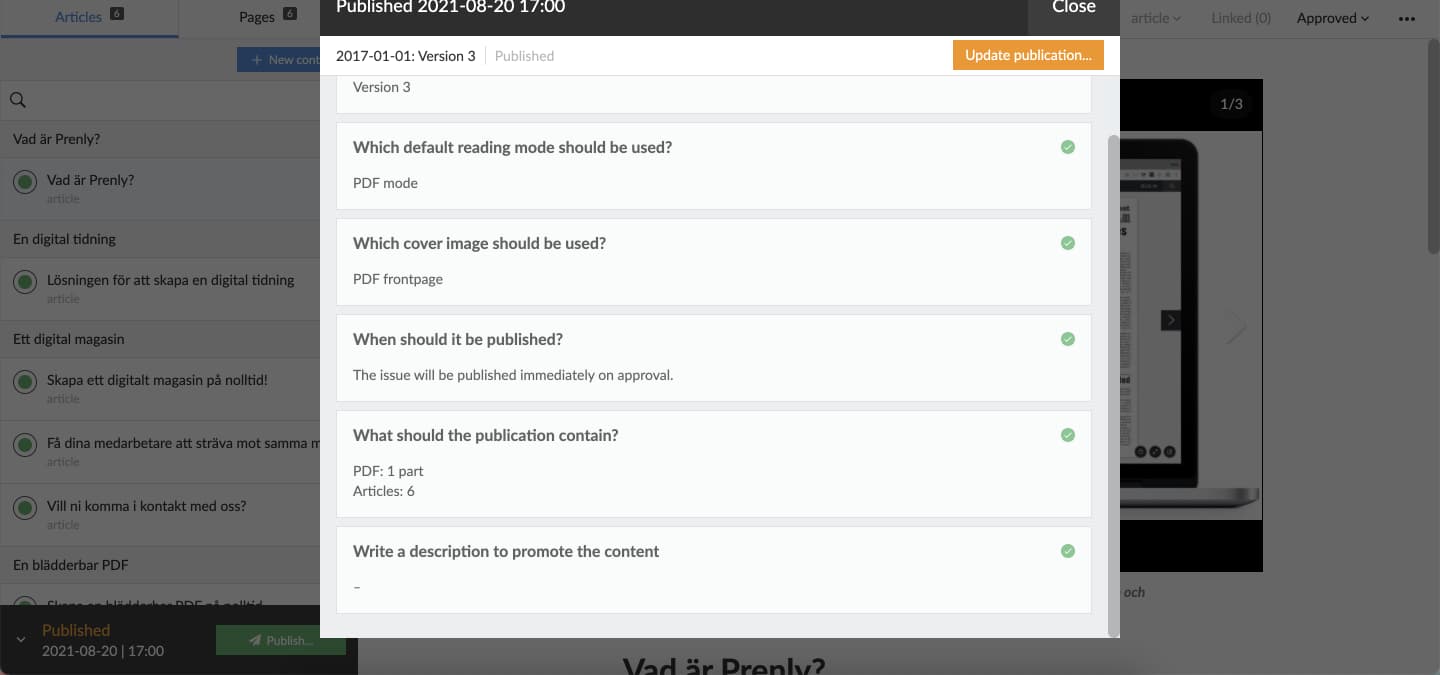
Re-publish the publication in order to let the readers receive the changes.
Follow these simple steps to re-publish your publication:
1. Select "Publish...".
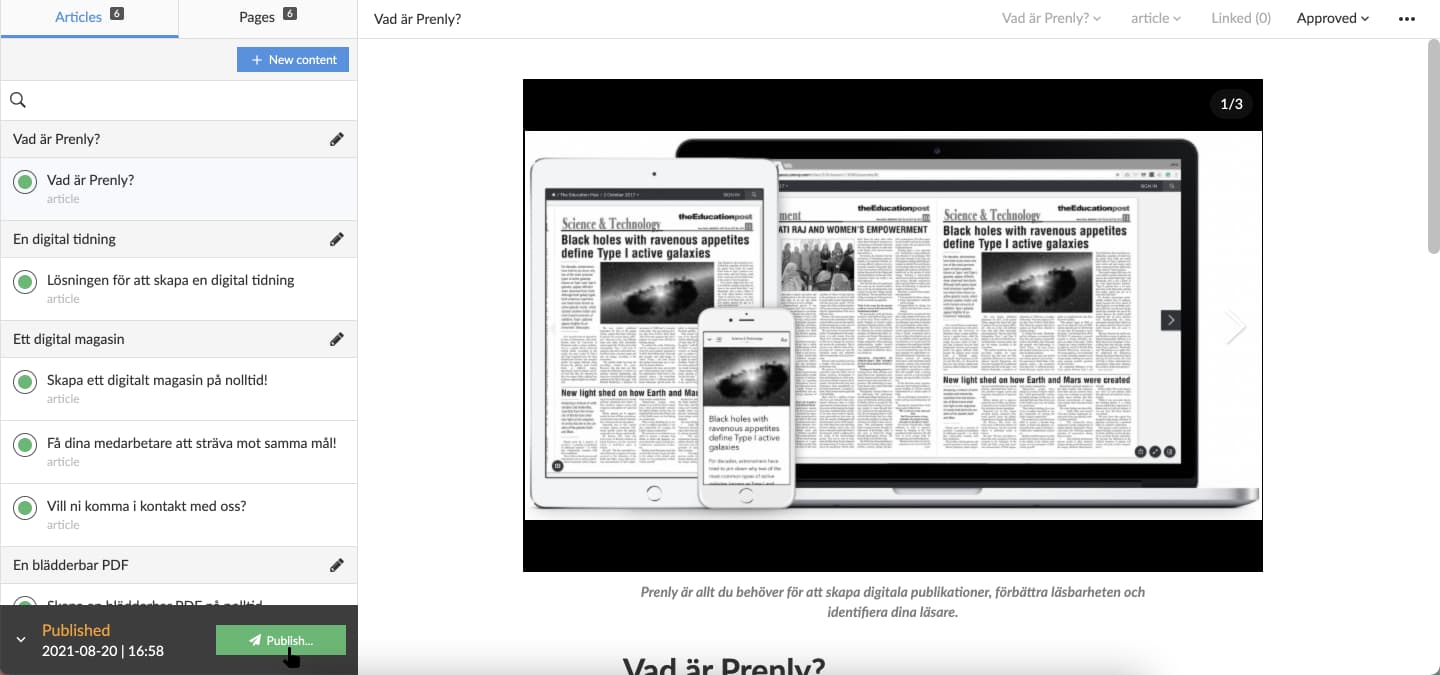 Select "Publish..." to initiate a new publication version.
2. Select "Publish now" to publish the changes without reviewing the publish settings. If you want to review the settings, see the next step.
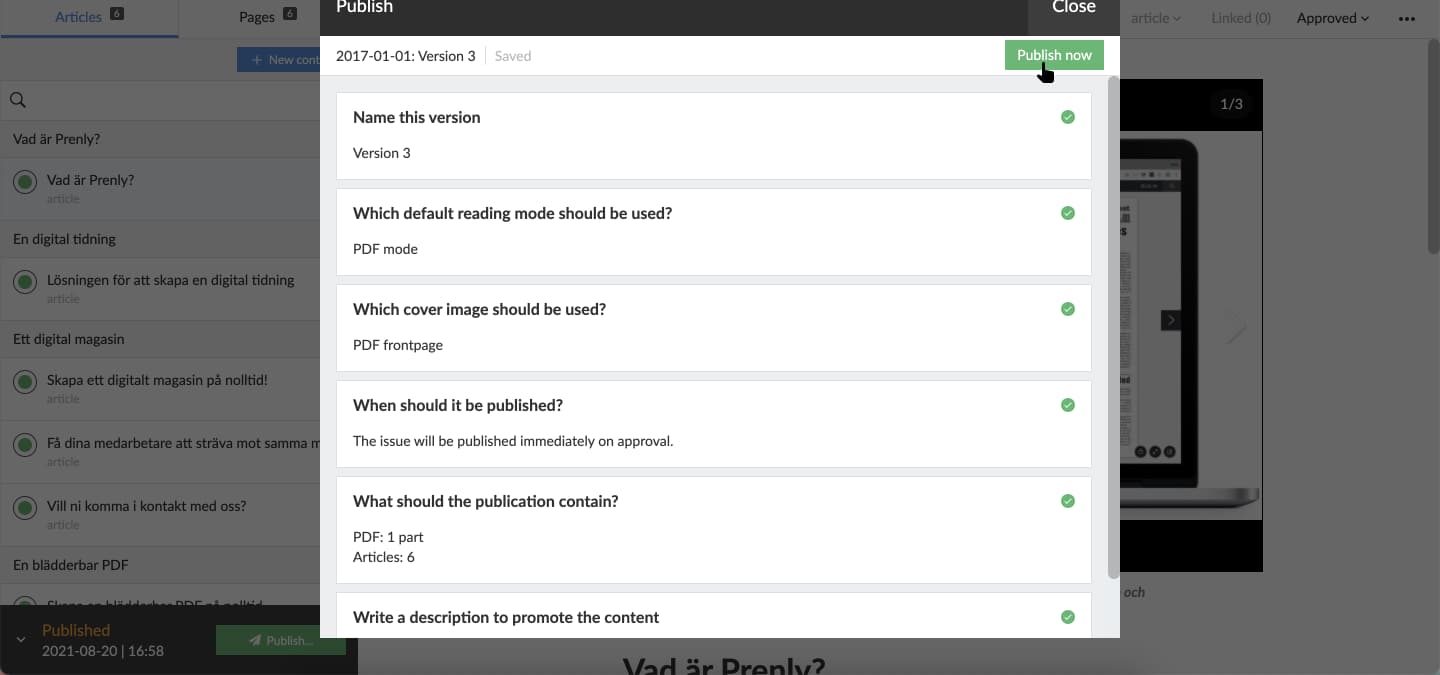 Select "Publish now" to publish a new version with the standard publish settings.
3. Select a publish setting section to review the current settings.
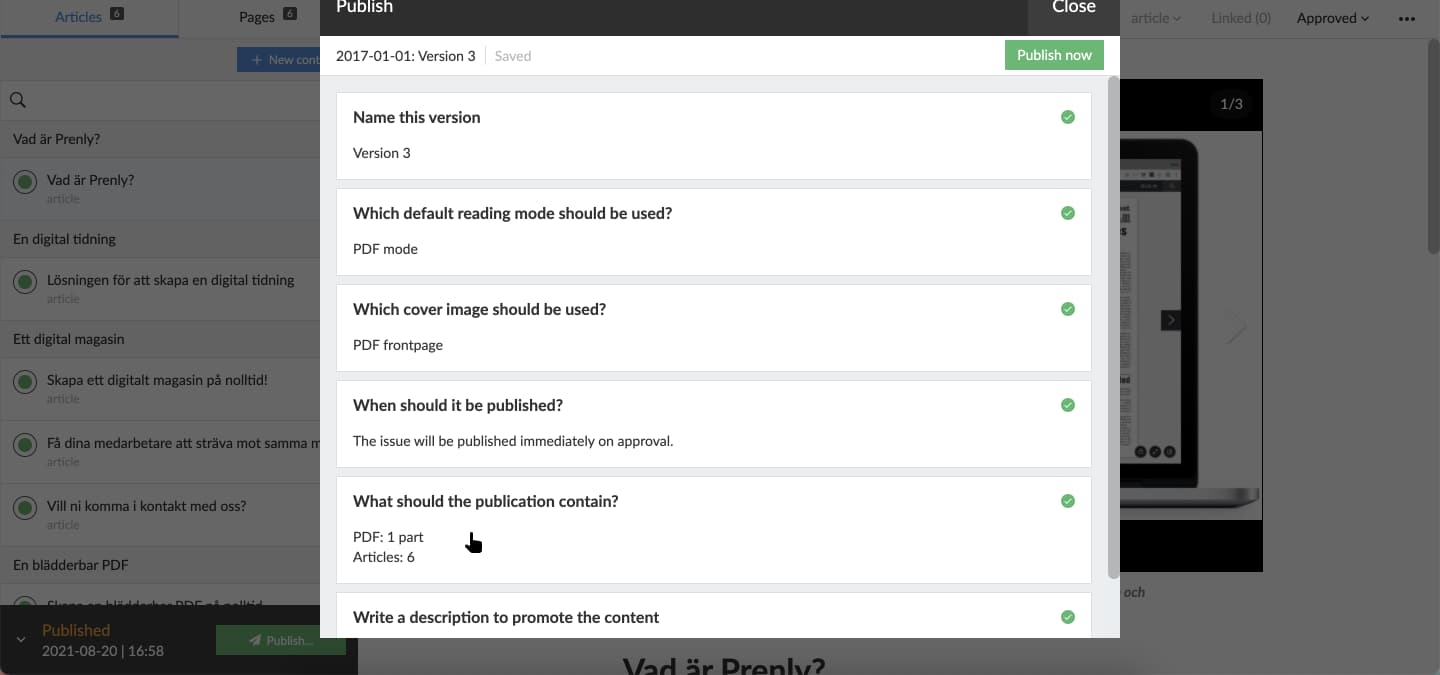 Select "What should the publication contain?" to select which articles to keep in the new publication version.
Select which articles among the approved-for-publish articles you want to keep in the new publication version.
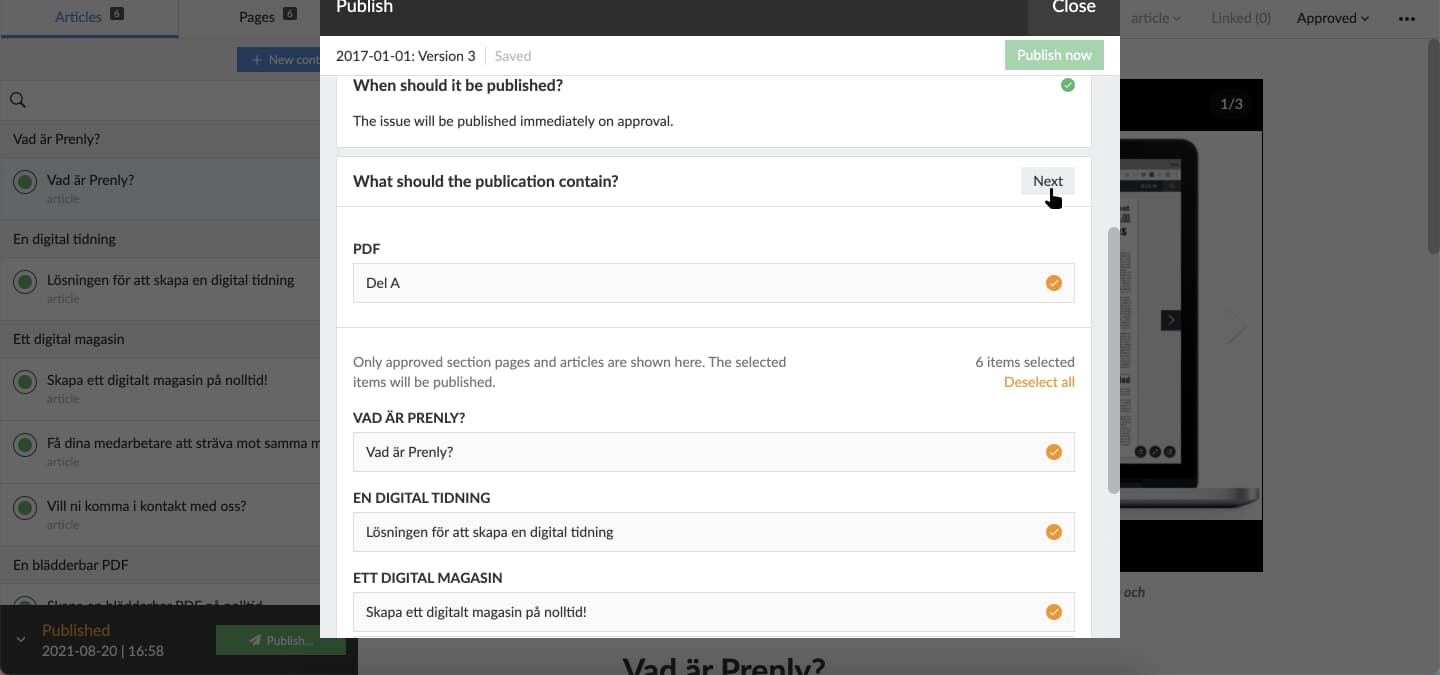 Select "Next" to approve the current settings for the section.
4. The graphical interface will update when the publication has been re-published.
Re-publish a scheduled issue
If an issue is already scheduled for publication and you want to make changes, you need to reschedule it.
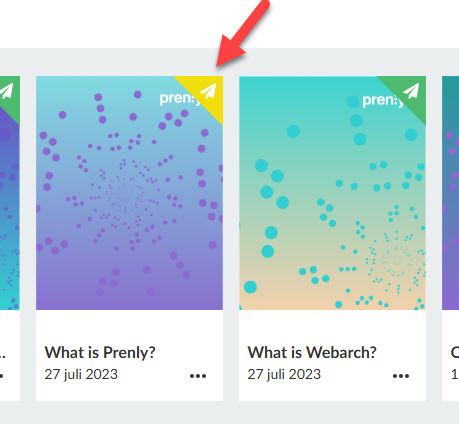
You can see that an issue is scheduled by the yellow indicator in the top-right corner (see image).
-
Make your edits, then select "Publish...".
-
In the "When should it be published?" section, choose the new date and time, then click Next.
-
Select which articles the publication should contain, then click Next.
-
You don't need to enter a description. Simply click Done.
-
Then select "Schedule for publishing".
-
Done