Add video to article - Prenly
Here's how to add a video to an article in Prenly Workspace.
1. Log in to Prenly Workspace
2. Select an existing publication (that contains articles) or create a new article
3. Choose to edit an existing article or create a new one
4. Create a new paragraph and click the video icon ▶️ (see image).
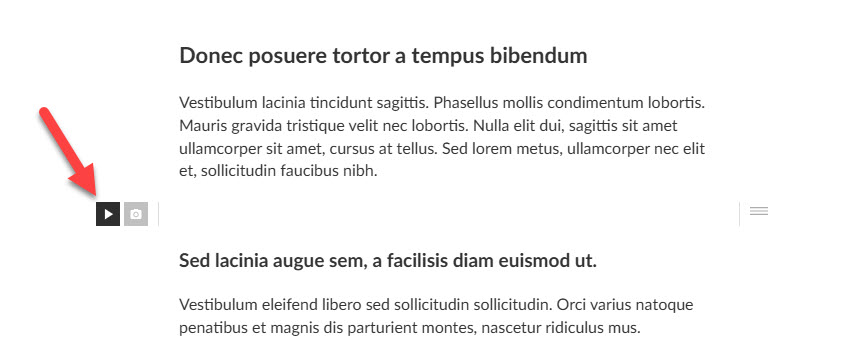 Click on the video icon
5. Paste the Youtube URL in the field for the video you want to add. In some cases, you can also paste an embed code.
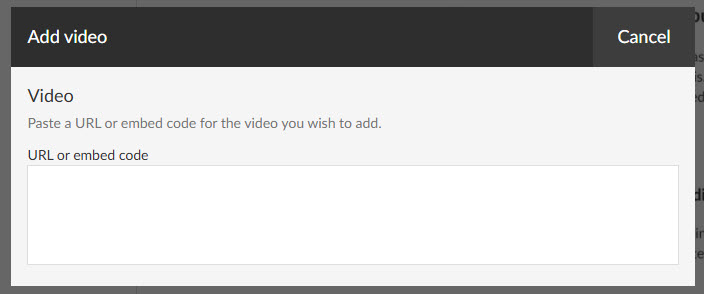
If you use Youtube Shorts, for example, there is no option to copy an embed code by default. However, there is a workaround so that you can generate such a code.
Just replace the word shorts in the link with watch. Then go to the link to find the embed code as on regular Youtube clips.
For example
https://www.youtube.com/shorts/{video-id} will then become https://www.youtube.com/watch/{video-id}
If everything works, you should see your video rendered in the article like the example video below. You can adjust the width via the icons above the video.
Good luck!